Clientless Access to Web Applications
Users reach internal applications from a standard browser. Nothing is installed to open an application: the user signs in to the platform's portal, authenticates, and opens the applications their policy entitles them to. The application itself is never published to the internet - it stays private behind a gateway, and the browser reaches it through that gateway over a mutually authenticated TLS session.
This page is the summary of clientless access. Each section links to the page that covers the detail.
Signing in
The portal asks for an identifier first:
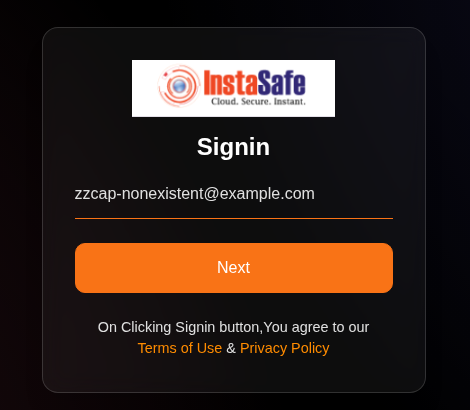
The identifier is resolved to a user, and the authentication method configured for that user follows - a local password, a directory bind, or a redirect to the organisation's identity provider. The sign-in page itself is protected against automated attack; see Login Protection.
| Local, directory or federated | Local accounts, Active Directory and OpenLDAP, or SAML, OAuth2 and OpenID Connect. See Directory Queries and the Login Identifier and SSO with OAuth2 and OpenID Connect. |
| Multi-factor | TOTP, push notification, SMS OTP, email OTP, a FIDO2 hardware key, or a backup code. See Directory Authentication and MFA. |
| Certificate | A digital certificate can be required as a factor. See Certificate Authentication. |
No application is listed, and none can be opened, until authentication is complete.
How a web application is reached
The portal is an authenticating reverse proxy. The application keeps its private address and is never published; the user's browser only ever talks to the portal.
1. The application's name points at the portal
The organisation's DNS administrators publish a CNAME so that the application's own hostname resolves to the portal:
app.example.com CNAME portal.example.com
A request to https://app.example.com therefore arrives at the portal. Where the change is
wanted for a limited set of users rather than everyone, the same entry can be made in the
hosts file on those users' machines instead of in public DNS.
2. The user is authenticated and authorised
The request reaches the portal through the perimeter firewall on HTTPS 443. The portal authenticates the user and checks whether that user is entitled to this application before anything is forwarded.
A user who is already signed in can instead launch the application from its tile on the portal, which is the same check reached a different way.
3. The portal proxies the request over the tunnel
The portal holds a single, persistent tunnel to the controller. Once the user is authenticated and authorised, the portal forwards the HTTPS request over that tunnel to the controller, which stitches it through to the gateway serving the application, and the gateway reaches the application over HTTPS on its private address. The response returns along the same path.
| Hop | |
|---|---|
| User's browser | https://app.example.com, no agent installed |
| Public DNS | CNAME to the portal |
| Firewall | HTTPS 443 into the DMZ |
| User portal | Authentication, entitlement check, reverse proxy |
| persistent tunnel | |
| Controller | Trust broker; checks policy and stitches the tunnels |
| Gateway | Terminates the tunnel and reaches the application |
| Internal web application | Private address, HTTPS |
The controller and gateway sit in the protected VLAN with the database and the administration console; only the portal is reachable from outside.
What this means in practice
- The application's private address is never exposed, and its public name resolves to the portal rather than to the application.
- No agent, plug-in or browser extension is installed to reach it.
- Nothing is forwarded before the user has been authenticated and found entitled, so an unauthenticated request never reaches the application at all.
- The gateway serving the application needs HTTPS reach to the application's private address. That is the only network dependency the arrangement adds.
- Access and event logs record the session and the end user - see Audit Logs.
What the user sees
After signing in, the user lands on a portal with three sections: Dashboard, Downloads and Applications.
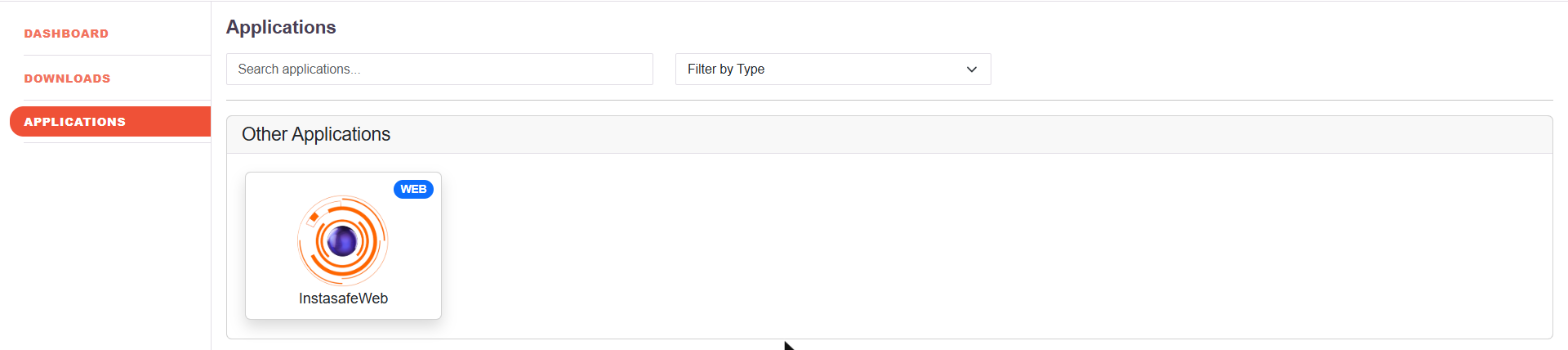
Each tile is an application the signed-in user is entitled to, carrying the application's own icon and a badge naming its type. Icons are set per application, so eOffice, Sparrow and any other published application are recognisable at a glance - see Application Icons.
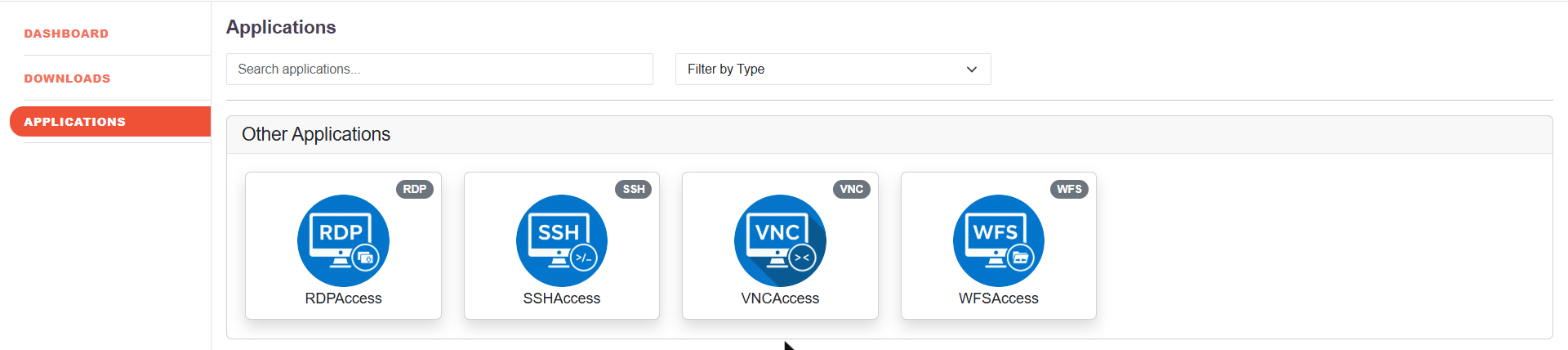
Applications lists everything the user is entitled to, with a search box and a Filter by Type facet so a long list can be narrowed to one kind of resource:
| Type | What it opens in the browser |
|---|---|
| WEB | An internal web application, over HTTP or HTTPS |
| RDP | A Windows desktop session, rendered in the browser |
| SSH | A terminal session, rendered in the browser |
| VNC | A remote framebuffer session |
| DB | A database endpoint |
| WFS | A file share |
A user entitled to nothing sees an empty list. Applications appear only after an access policy grants them, which is what makes the portal per-user rather than a shared catalogue. See Agentless Access for how RDP, SSH and file-share sessions are rendered.
Dashboard shows the user their own current and previous session, the devices registered to them, which web and network applications they hold, and the applications they have opened recently. It also carries the MFA, device binding, shift schedule and geo binding indicators, so a user can see which controls apply to them.
Browsers
All modern browsers are supported, including Google Chrome, Microsoft Edge, Mozilla Firefox and Apple Safari. No plug-in and no extension is installed to use the portal. Minimum versions are in Supported Browsers.
Device compliance on a browser session
Browser-based access is not limited to identity checks. With Device Compliance for Web Access enabled, the endpoint is validated before the user is let in: device binding, geo binding, antivirus state, operating system version and browser version are each checked, and a failure refuses the login with the reason stated.
The checks are performed on the endpoint by InstaCheck, a small component the user installs once, and the same device checks that apply to an agent session can therefore apply to a browser session. See Identifying the Browser and the Device on Web Access and Device Binding for Browser Users.
Controls on the session
| Control | |
|---|---|
| Per-application entitlement | A user reaches only what an access policy grants. See Role-Based Application Access Control. |
| Day and time | Access can be confined to permitted days and hours. See Application Access Time. |
| Source address | Login can be restricted to named public addresses. See Restricting Access by Public IP. |
| Idle timeout and forced logout | Portal sessions time out, and an administrator can disconnect a user. See Account Lockout, Idle Timeout and Forced Logout. |
| Endpoint controls | Downloads, developer tools and printing can be blocked in Chrome. See Chrome Controls. |
| Risk response | A changed browser, platform or location can raise an alert, deny access, suspend the user or disconnect the session. See Email Alerts and Scheduled Reports. |
What is recorded
Every session is held with its login and logout time, public IP, country, serving gateway and data volumes, and every application opened is recorded. RDP and SSH sessions can be recorded for audit. See Audit Logs, Last Login, and Access by Day and Time and Reporting, Dashboards and Export. Events can be streamed to a SIEM in real time - see Real-Time Log Streaming.
Publishing an application for clientless access
- Create the application. Define the internal application on the platform - see Create an Application.
- Attach it to a gateway. The gateway is what reaches the application inside the network - see Create Gateway and Add application to the gateway.
- Entitle it. Write an access policy whose members are the user group that needs the application - see Role-Based Application Access Control.
Once those three are in place, the application appears to the entitled users when they sign in to the portal, and to nobody else.
When the agent is used instead
The agent is used where traffic has to leave the device at network level rather than be rendered in a browser - a thick client, a protocol the browser cannot present, or full tunnel. See Split Tunnel and Full Tunnel and ZTNA Agent. It is an alternative access mode, not a prerequisite for the controls above.