Last Login, and Access by Day and Time
What "last login" means
Last Login Time is the time of the last successful login performed in the InstaSafe User Portal or the InstaSafe Agent. It is shown to administrators in two places: the User Last Login Report and the Event Logs.
User Last Login Report
Logs & Reports → User Last Login lists every user with the timestamp of their most
recent successful login, in YYYY-MM-DD HH:MM:SS format. Gateways are listed the same way,
with the time of their latest successful connection.
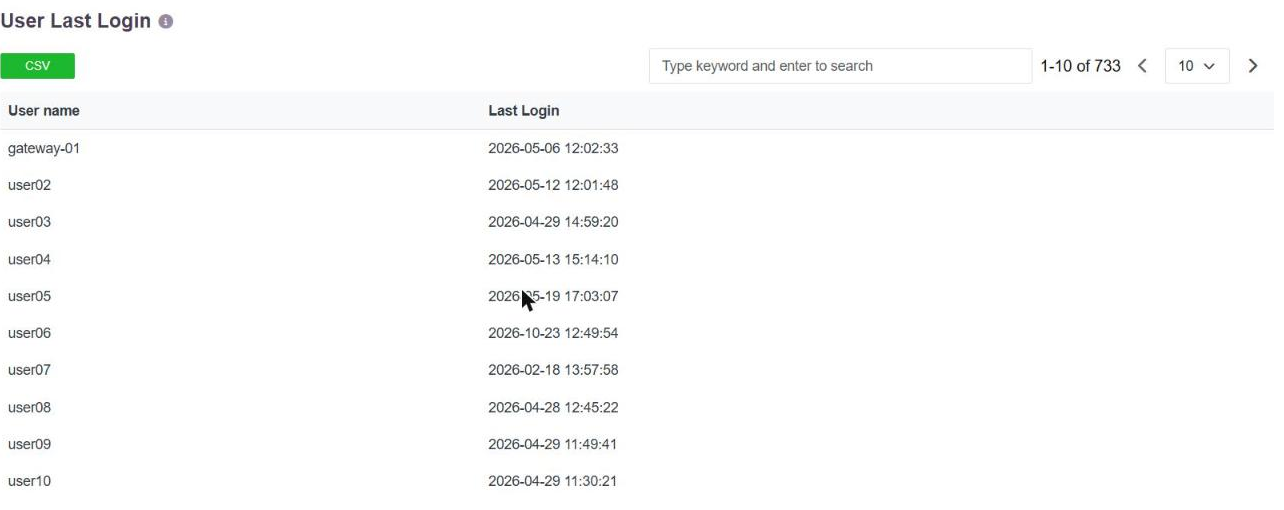
The list is searchable by keyword and paged. CSV exports the complete list - the administrator receives an email with a download link, and the file carries the same two columns. See Reporting, Dashboards and Export.
The audit section also carries a Never Logged In view, which asks the same question the other way round: accounts that exist and have never been used.
Event Logs
Logs & Reports → Event Log holds the individual login events rather than a per-user summary, so an administrator can see every login attempt and not only the latest one.
The event type selector carries a separate type for each kind of login, so the log can be narrowed to exactly the one in question:
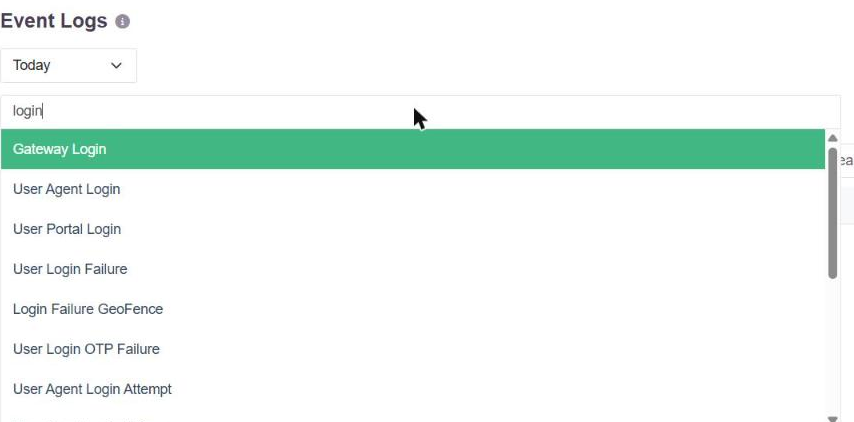
| Event type | What it records |
|---|---|
| User Portal Login | A successful sign-in to the InstaSafe User Portal |
| User Agent Login | A successful sign-in through the InstaSafe Agent |
| Gateway Login | A gateway's successful connection |
| User Login Failure | A failed sign-in |
| User Login OTP Failure | A sign-in that failed at the second factor |
| Login Failure GeoFence | A sign-in refused by the geolocation condition |
| User Agent Login Attempt | An agent sign-in attempt |
Selecting a type and clicking Fetch returns the matching events with their time, the user, and the log line - including the authentication profile used, where the user signed in through an external identity provider:
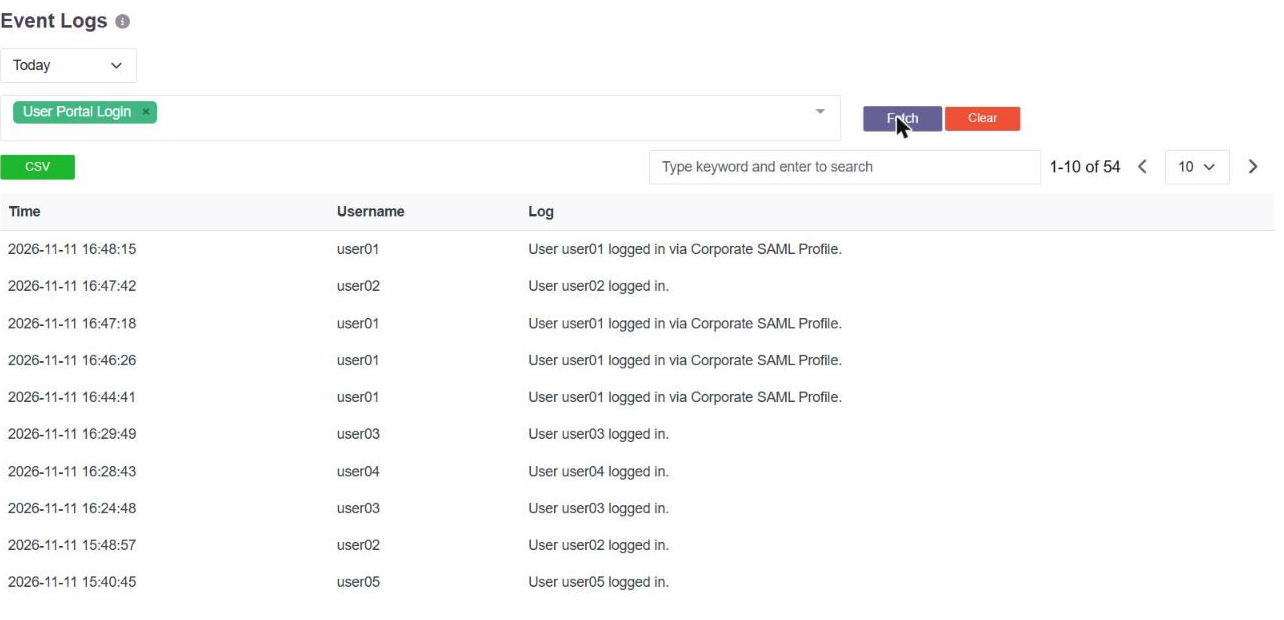
The date range above the filter sets the period, and CSV exports the result.
Because failed logins have their own event types, the same page answers both halves of the question: when the account last signed in successfully, and whether anything else tried.
To the user
The portal header shows the signed-in user the timestamp of their own previous portal login, so a user who did not make that sign-in can see as much without going to an administrator.
Dormant accounts
Long Inactivity Login is available as a risk type, so an account that has not been used for a long period and is then used again raises the risk profile's action rather than passing unnoticed. The User Settings page separately carries Inactive Users actions - Warning, Suspend and Delete.
Restricting access by day and time
Access can be limited to particular days and hours as a contextual condition on the access policy, rather than as a property of the account.
An Application Access Time dataset is created and populated with the days of the week on which access is permitted, and a Start Time and End Time for those days. The dataset is then attached to the policy, so the restriction applies to the users and applications that policy covers.
Typical uses are allowing a business application only during working hours, and refusing sensitive applications outside them or at weekends.
The full steps are in Application Access Time.